
How to create a request step by step
On this page
A request is the commissioning of one or more videos; the brief is everything the creator needs to know to record it. It is created in a guided assistant that saves your changes automatically and that you can complete in just a few minutes.
Choose the request type
- Public request: you publish the brief, creators who are a good fit apply, and you choose. Access it from Public brief & Campaigns.
- Private request: you invite a creator directly. Go to Creators — private brief, open their profile and click Launch private brief.
You can also start from the Dashboard under What do you want to create today? and choose between the two. If you are unsure, read public or private request: which one to choose.
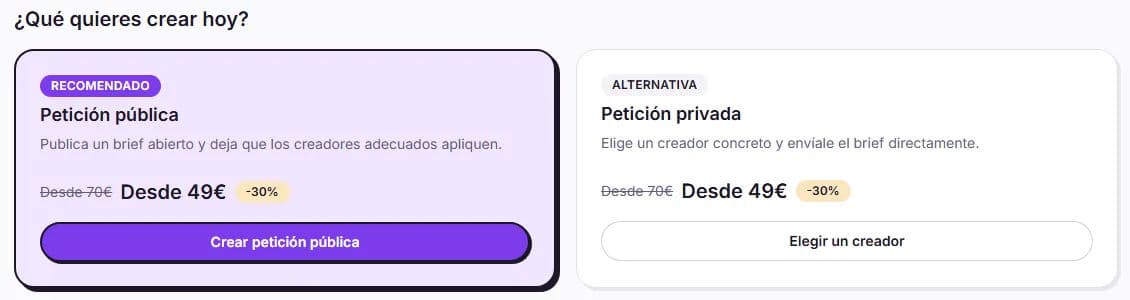
The assistant steps
The public request has 6 steps and the private request has 5: in the private one, you have already chosen the creator, so there is no level step.
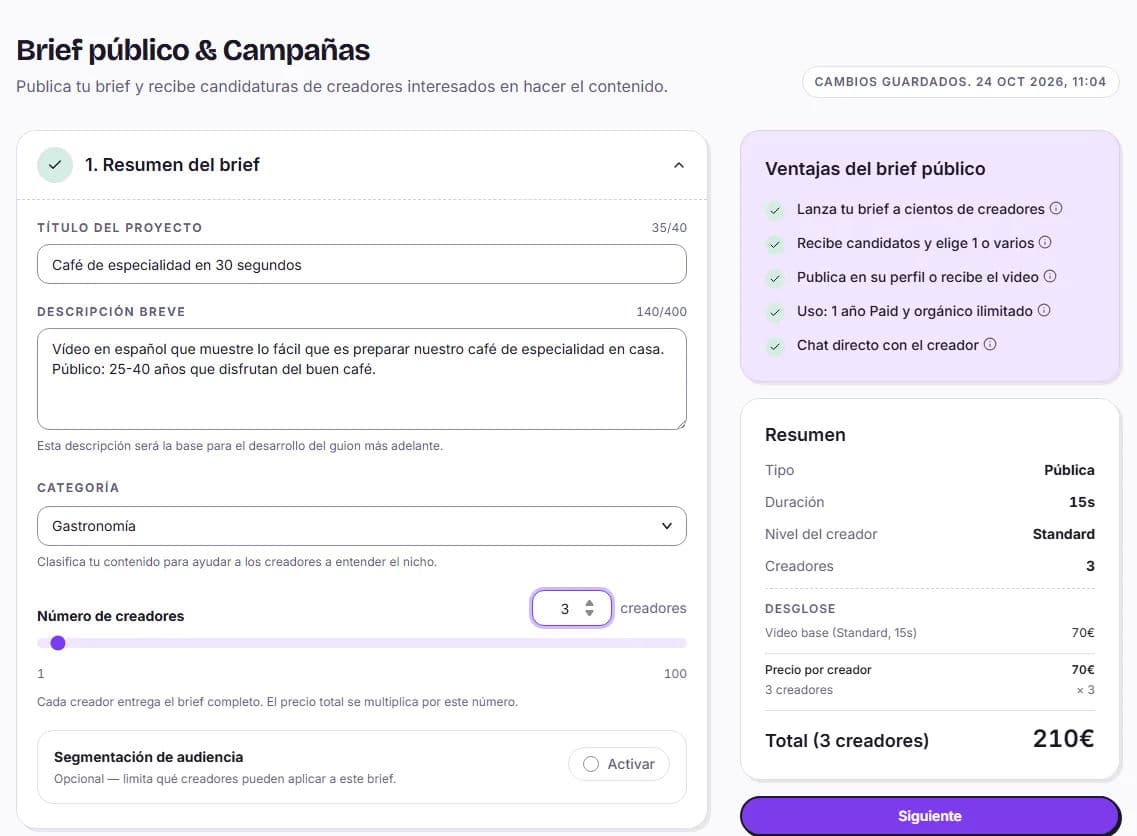
1. Brief summary
Project title (up to 40 characters), Short description (up to 400) and Category. For public requests, you also choose the Number of creators, from 1 to 100: each creator delivers the complete brief, so the price is multiplied by the number of creators. You can also activate Audience targeting by gender and country: only creators who meet those criteria will be able to apply.
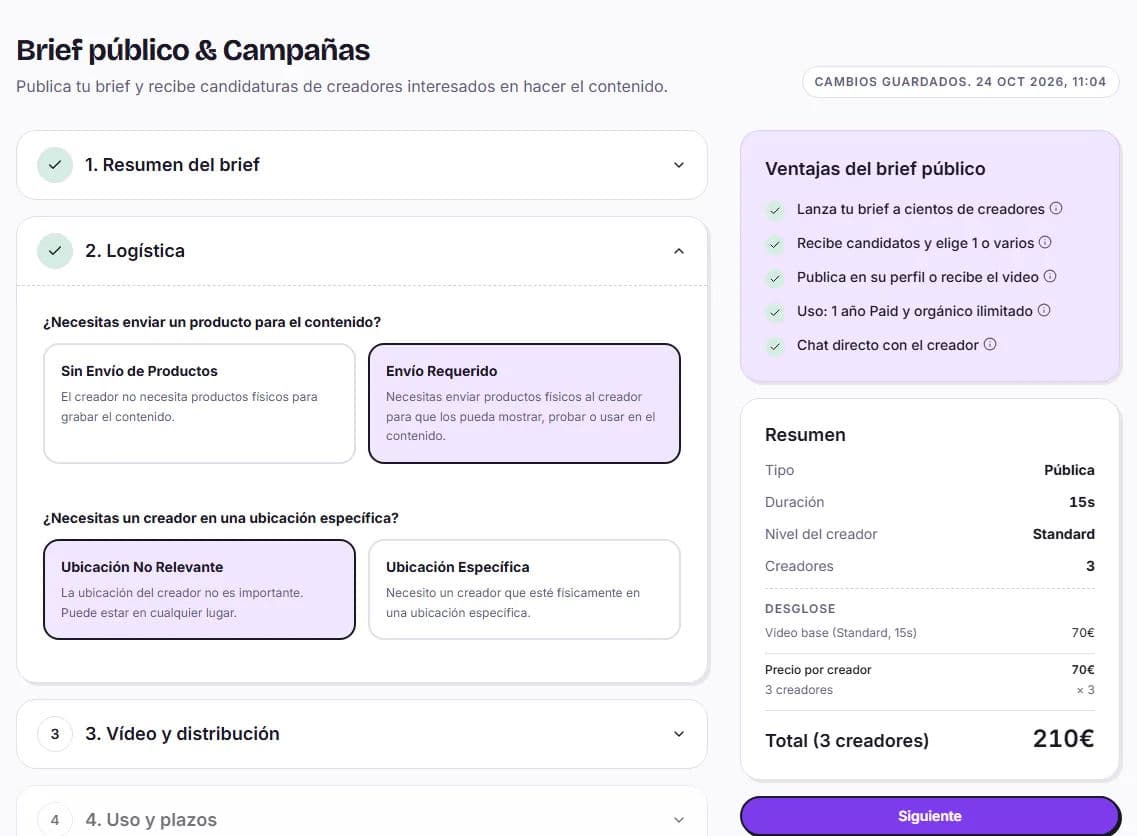
2. Logistics
Indicate whether you need to send a product to the creator and whether the recording has to take place at a specific location. If so, describe the location (up to 500 characters).
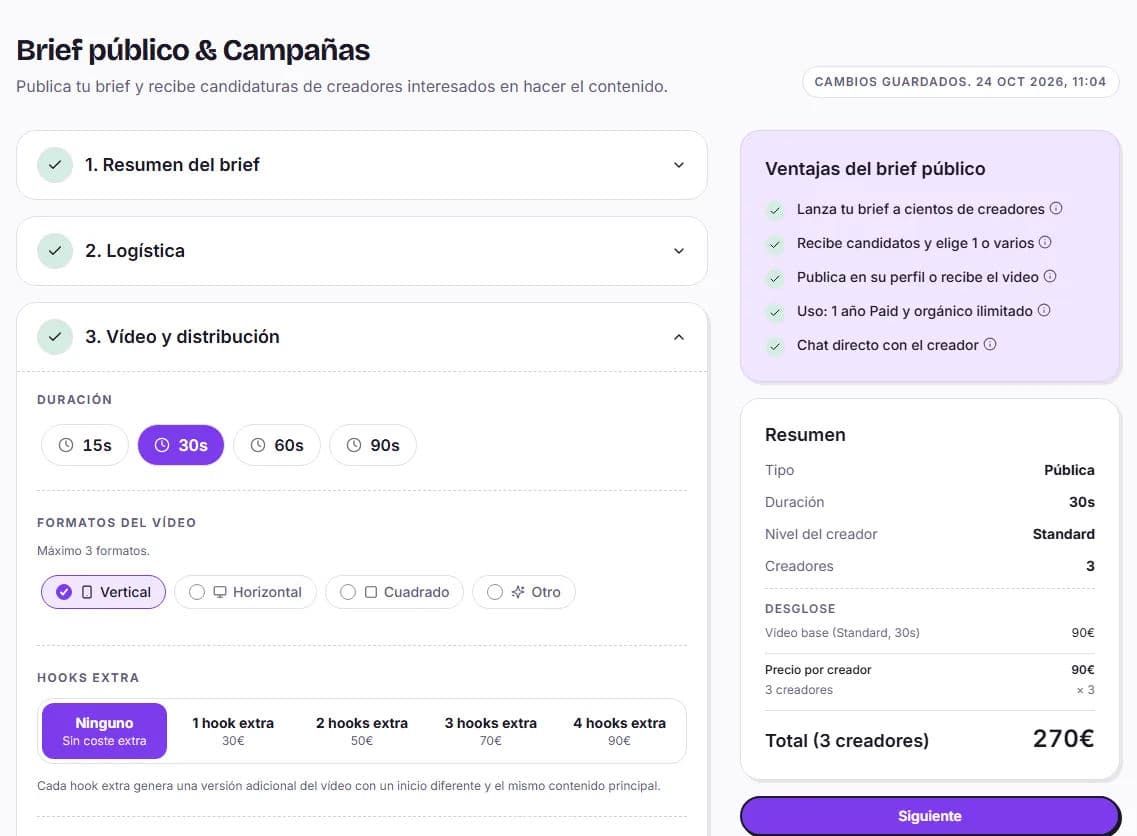
3. Video and distribution
Choose the duration (15, 30, 60 or 90 seconds), up to 3 formats (vertical, horizontal, square or other) and, if you want, up to 4 extra hooks. Under Publish on social media, which is optional, you decide whether the creator will publish the video on Instagram, TikTok or YouTube and how.
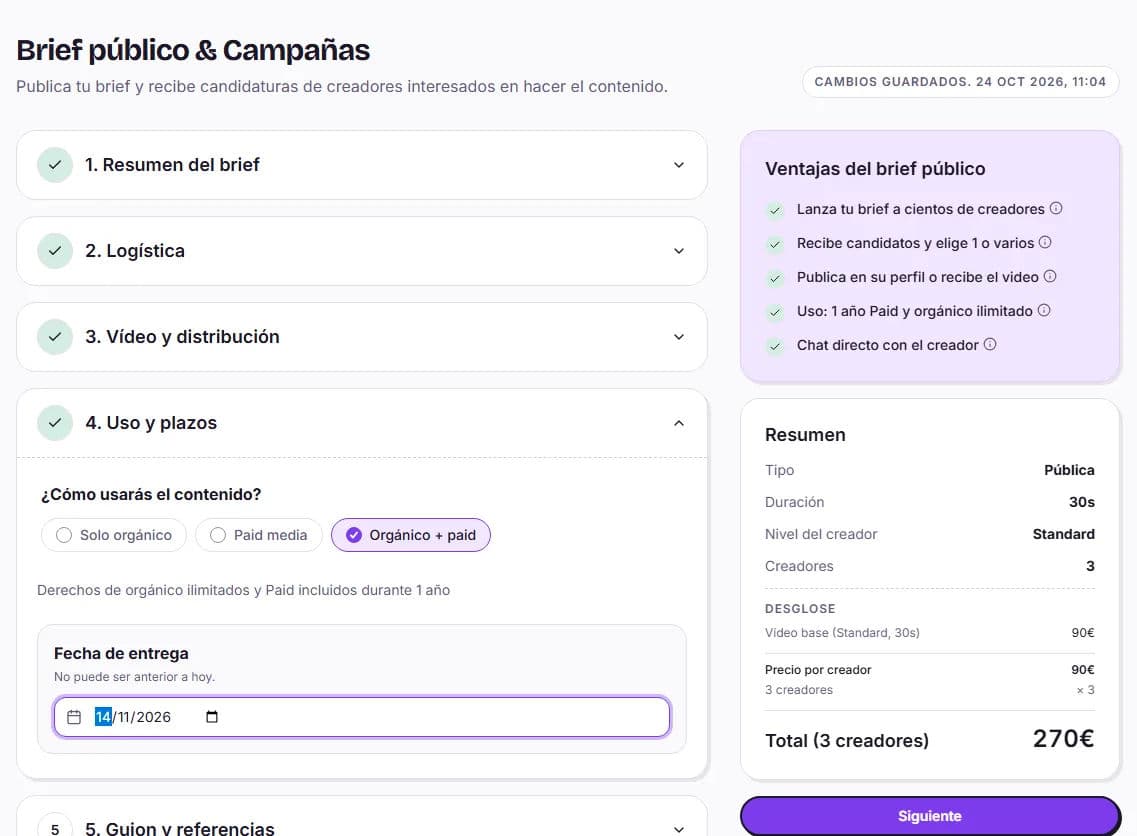
4. Usage and deadlines
Indicate how you will use the content (Organic only, Paid media or Organic + paid) and the Delivery date: for public requests, today or any later day; for private requests, at least 7 days from today. For a private request with paid, you also choose the duration: 3 months included or an extension to 6 months, 1 year or 2 years according to the creator's rates.
5. Script and references
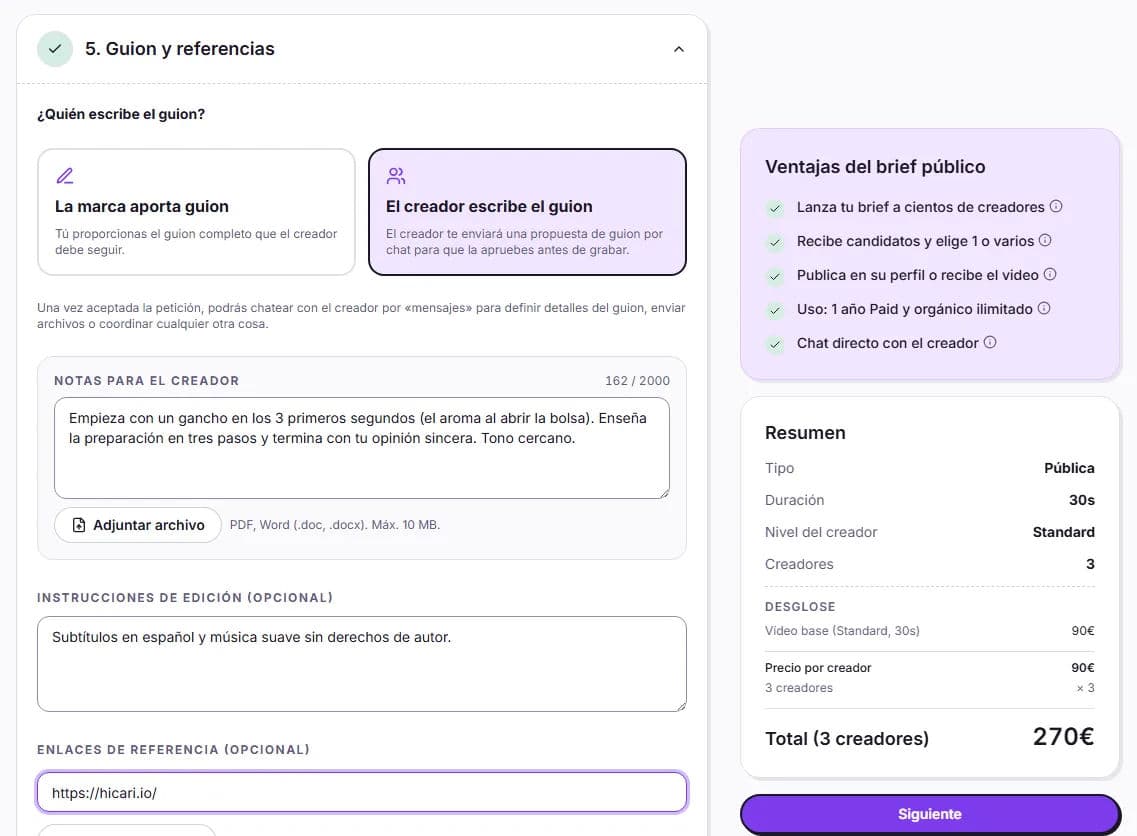
Choose The brand provides the script (you write it in the editor or attach a PDF or Word file of up to 10 MB) or The creator writes the script (you leave notes of up to 2,000 characters and the creator sends you their proposal via chat before recording). If you want, add Editing instructions and up to 3 reference links.
6. Creator level (public requests only)
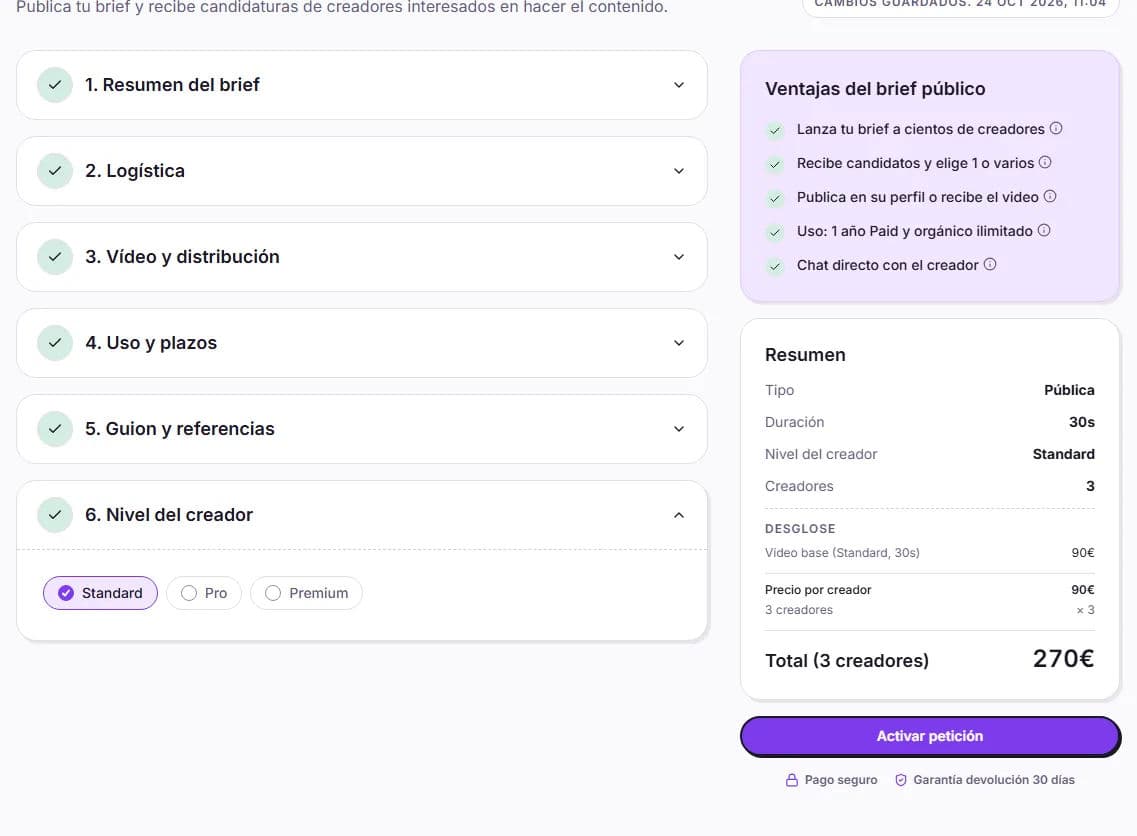
Choose the creator's minimum level: Standard, Pro or Premium. Creators at a higher level will also be able to apply; if you choose one, you pay the difference when selecting them. Next to the level, you will see the price summary before activating.
Price, saving and drafts
As you complete the steps, you will see the summary with the price breakdown. A video costs from 70 € with a Standard creator (15 seconds), from 105 € with a Pro creator and from 140 € with a Premium creator, excluding VAT. The duration, formats and extra hooks, social media publishing and paid adjust the final price, which you will always see before paying.
The assistant saves your changes automatically (you will see Changes saved.). If you leave it unfinished, the request remains as a Draft in My requests and you can resume it whenever you want.
Activate your request
At the end, you will see one of these two buttons:
- Activate request, if you have enough balance. The amount is held from your balance.
- Go to payment, if you do not have enough. Your balance is used first and you pay the remainder with Stripe. Before that, we will ask for your billing details.
Once active, the public request appears in Opportunities, the creators' dashboard. For a private request, the invitation reaches the creator, who has 72 hours to accept or reject it. You can track the status in My requests.