
My accounts: one account per client
On this page
In My accounts, you create an account for each client, brand or business line. Each account has its own balance, members and settings, so budgets, requests and conversations never get mixed up.
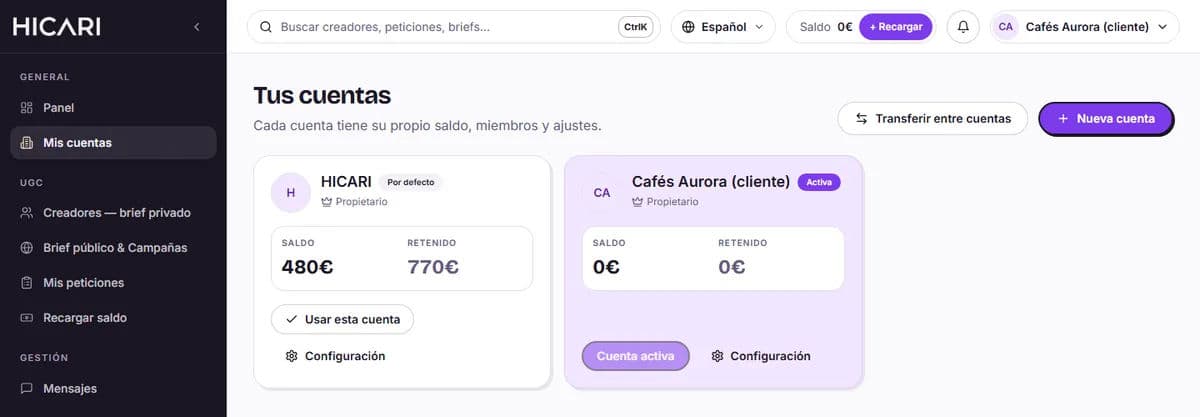
In the list, you can see each account with its Balance and Held amount, your role in it (Owner or Member) and two buttons: Use this account to work in it and Settings to open its settings, members and balance.
What each account includes
- Its own available and held Balance, with its transactions and invoices.
- Its own requests (My requests), its Messages with creators and its selections in My creators.
- Members: the people who can access it and which pages each person can see.
- Account settings: name, description, photo and website. This is the profile creators see: they see the account name, not the name of the person writing to them.
- Billing details: each account's invoices are issued with its own details.
When you sign up, you already have a main account, marked as Default. Everything you do (top up balance, launch requests, chat) takes place in the Active account, the one you have selected at that moment.
Create a new account
Click New account
In the menu, go to My accounts and click New account.
Give it a name
Under Account name, use the client's or brand's name, for example «Lúmina Skin». This is the name creators will see.
Choose the billing details
Same as the main account copies the company name, NIF/CIF and address from your main account. With Other billing details, you enter different details, for example if you want that account's invoices to be issued in your client's name. You can change them later in the account settings.
Create the account and start using it
Click Create account and then Use this account to work in it.
Transfer balance between accounts
If you top up one account and need balance in another, click Transfer between accounts in My accounts:
- Choose the From account and the To account.
- Enter the Amount in whole euros, without cents. At most, you can transfer the available balance in the source account.
- Add a Reason (optional) and click Transfer.
The transfer is recorded in Recent transactions, within the balance of both accounts. Only available balance is moved: balance held by active requests stays where it is. You can transfer between accounts that belong to you or in which you have the Can transfer balance permission.
Delete an account
Only the owner can delete an account, from Account settings, under Danger zone → Delete account. You cannot delete your last account or an account that has available or held balance. First, transfer the available balance to another account; held balance cannot be transferred, so wait for its requests to finish or be cancelled. When you delete it, its data is erased and cannot be recovered.
When is it useful to use several accounts?
If you work for several clients, manage several brands or want to separate regions or business lines. Each budget, team and conversation stays where it belongs.
Can my team see all the accounts?
No. Each person only sees the accounts you invite them to and, within each one, only the pages you allow them to access. We explain this in members and permissions.
Do creators see my agency's name?
They see the name and profile of the account from which you launch the request. If you would rather your agency not appear, give the account the name of the brand you work for.
Where can I see each client's invoices?
In the Balance tab of each account, under Invoices. More details in invoices and billing details.