
Invite your team: members and permissions
On this page
Each HICARI account can have multiple members. You decide, account by account, which pages each person can see and what they can do. This way, your team can work on your clients’ accounts without seeing budgets or brands that they shouldn’t have access to.
Before inviting
The person must already have a brand account in HICARI with that email address. If they don’t, ask them to register for free at the brand registration page and then invite them. You can’t invite emails registered as creators.
How to invite a member
Open Members
In My accounts, click Settings for the account and go to the Members tab.
Click Invite member
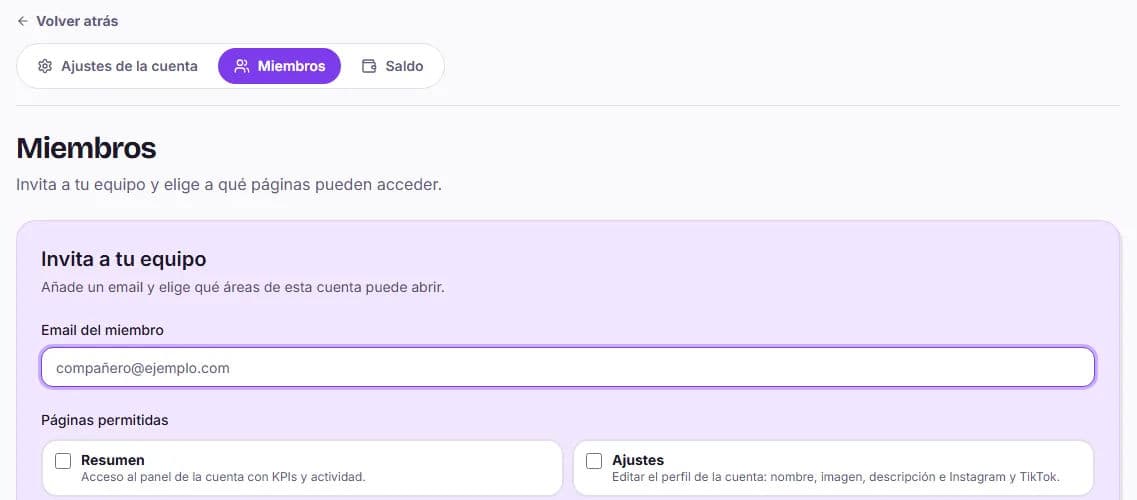
Invite your team opens. Enter the member’s Email.
Choose the permitted pages
Under Permitted pages, select the pages they can open. You can find details about each one in the table below.
Grant extra permissions only if needed
Enable Can transfer balance or Can manage members if that person needs them.
Send the invitation
Click Send invitation. Access is immediate: the account appears in their My accounts and they can enter it with Use this account.
What each page allows
| Page | What they can do |
|---|---|
| Summary | View the account dashboard with its metrics and activity. |
| Settings | Edit the account profile: name, photo, description and website. |
| Balance | View the available and held balance and the transaction history. |
| Payments | Top up the balance and view the payment history. |
| Transfers | Move balance between accounts where they have permission to transfer. |
| Members | See who has access to the account. To invite or remove members, they also need Can manage members. |
| Requests | Create and manage UGC requests and their drafts. |
| Messages | Read and reply to conversations with creators from that account. |
If someone doesn’t have the Balance page, they’ll see «—» where the amounts appear.
Special permissions
- Can transfer balance: allows them to move balance from that account. To do so, they also need the Transfers page.
- Can manage members: allows them to invite and remove members. They also need the Members page and can only grant the pages they themselves have.
Only the account owner can grant these two permissions. The owner has full access and it can’t be removed.
Change or remove access
In Members, click Remove next to a person to revoke their access to that account. The change takes effect immediately. If you want to change their pages or permissions, remove their access and invite them again with the new settings.
Configuration examples
| Profile | Pages | Extra permissions |
|---|---|---|
| Account manager at your agency | Summary, Balance, requests and messages | None |
| Finance manager | Balance, payments and Transfers | Can transfer balance |
| Your end client | Summary and requests | None |