
My creators: selections, exports and links
On this page
In My creators, you save creators in selections, organize them into folders, and share them with a live link. It’s the fastest way to prepare a casting proposal for a client or a list of candidates for your team.
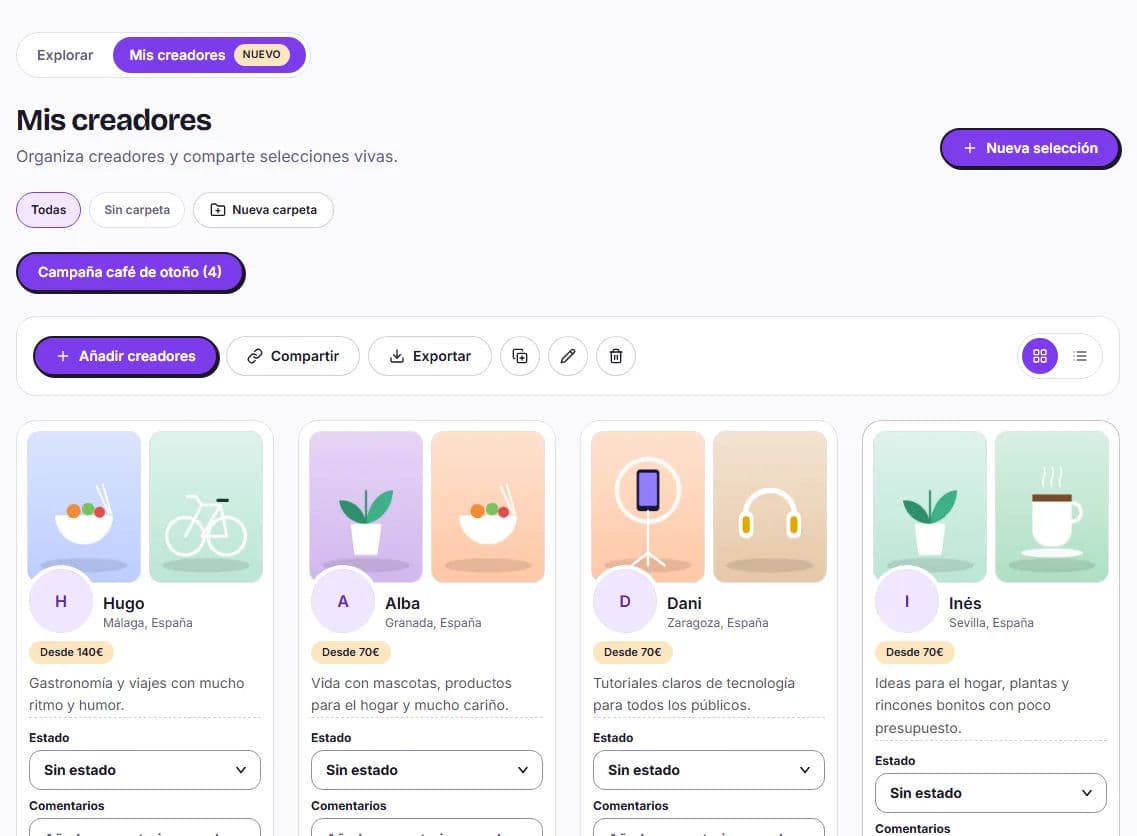
Where to find it
In Creators — private brief, My creators tab. Next to it, you have Favorites, with the creators you mark using Add to favorites while browsing. Selections belong to the account you’re logged into, so each client has their own.
Create a selection
Create the selection
Click New selection, enter the Selection name (for example, “Ruta Bikes · spring casting”), and click Create.
Add creators
Click Add creators, search for them by name, and add them to the selection.
Set the status and add comments
For each creator, choose a Status (Interested, Selected or Rejected) and write Comments for your team or client.
You can view the selection in Card view or List view, with the creator, location, price, status and comments. To organize them, use folders and Move selection to. You can also Rename, Duplicate a selection to use it as a starting point, or Delete selection (its links are also deleted).
Export to CSV or Excel
Click Export and choose Export CSV or Export Excel (.xlsx). For each creator, the file includes their name, the link to their public profile, city, country, starting price, status and comments. You can attach it to a proposal or work on the selection in your spreadsheet.
Share the selection with a link
- Click Share. Share selection opens.
- Under Branding, choose With HICARI branding or Without HICARI branding.
- Under Price, choose Show actual price, Hide price or Show a custom price. With the custom option, you enter the amount for each creator and see their current price as a reference.
- Click Generate link and then Copy link.
The link is live: if you add or remove creators, anyone with the link sees the updated selection. You can have a branded link and an unbranded link at the same time. To cut off access, use Revoke branded access or Revoke unbranded access.
From selection to request
Once your client has made their choice, open each creator’s profile and click Launch private brief to invite them directly. If you prefer several creators to apply, launch a public request and choose from those interested. You can find the step-by-step instructions in How to create a request.